
SpacePort Pre-Alpha Overview

First off, this is an “Pre” Alpha, if you have been around crypto for long you know that means it’s probably going to break. Because this runs in a container it’s unlikely to cause too much trouble!
The reason for this article: I have my first useful feature, so instead of waiting another month to finish out the rest of them, why not let people try it!
Also, because it’s an Pre-Alpha, only about 5% of the features are implemented. Here is what I mean:
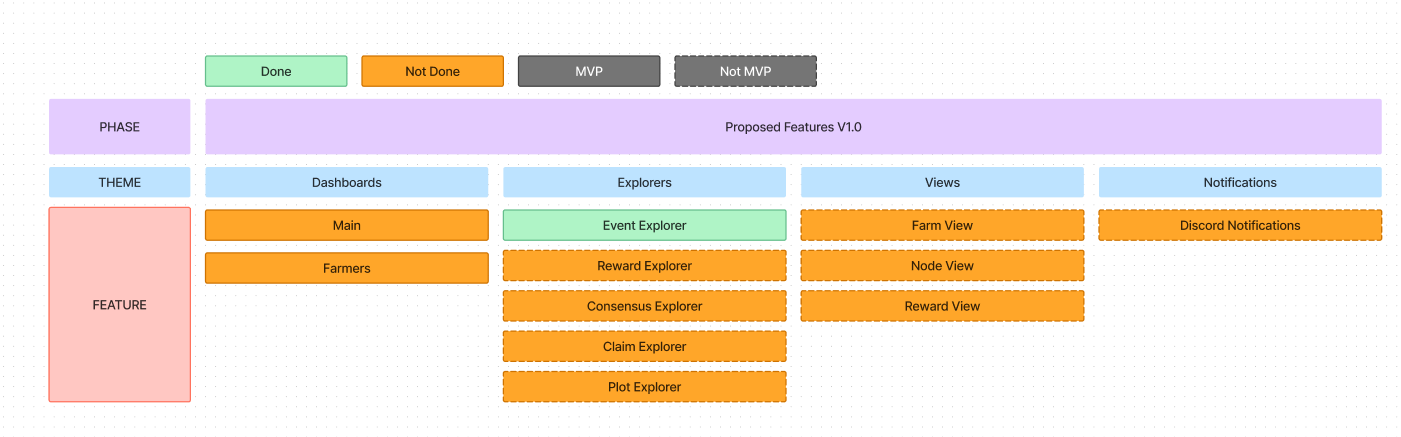
MVP: Minimum Viable Product - basically what I want done to move from Pre-Alpha to Alpha/Beta. The cards that have a dotted border are part of V1.0 but not required to do an Alpha/Beta launch and start testing core functionality.
So there is only one green card.. what is it. Well that is the Event Explorer of course! How SpacePort works is that using the Docker Python library, it directly parses your logs and turns them into “Events”. Events are categorized into 6 parts:
Event Name: “Syncing” would be an example. Or “Claim”.
Event Type: “Node” if it is an event a Node would create, or “Farmer”, or “Farm”, etc..
Event Level: INFO, WARN, ERROR
Event Source: Who did it? Basically the name of the Docker container that generated the event.
Event Data: A JSON string of the useful data from the event.
Event Datetime: When the event occurred.
The Event Explorer allows you to search these events. What’s cool about the Event Explorer is that it aggregates ALL of your events across all of your Nodes/Farmers (and eventually Cluster!). Now granted this information is available at the container level already via Portainer, or you can just printout out the logs directly from Docker. You can even install logging software that basically does this automatically for the most part. But this is just a core functionality for the real magic to happen later on.
See, raw Logs get turned into Events and stored in the Database, but “Key” events, like when you get a Reward, or Plot a sector, are parsed and stored in a table of their own. By the end there will be a bunch of tables in your sqlite database, each with important information to give you a complete understanding of the state of your farming operation!
Here is an example from the Event Explorer for a “Replotting Complete” event:

This is a Key event and will be parsed and added to the “Plots” table. The Plots table will have a column for each key in that JSON string. Here is the backend code for creating the Plots table to give you a better idea:
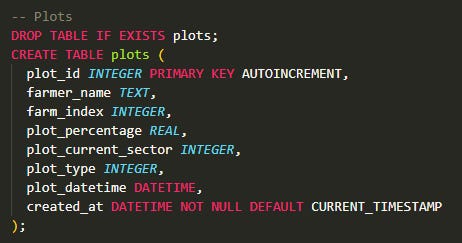
So we can see that when key events are parsed, and their data is stored in a specific database, we can then query this data in a meaningful way. Want to get the plot speed for a specific farm_index on a specific farmer over a specific date range? Easy! Want to see how often your farms are replotting? Easy! Want to get the progress of plotting for your farms? Easy!
Okay you get the point. With this data organized in this fashion, we can build really cool dashboards! But for each table, there will be an “Explorer”. This will let you query the raw tables so you can search out detailed information. This isn’t required to build a Dashboard, but the data is there so why not give you access to it!
So with all this said, I am putting together a Pre-Alpha tutorial for how to install SpacePort and try out the Event Explorer. It may fail fantastically, but I’m hoping to get any initial bugs/issues out of the way before I start really building on top of what I already have.
So that is the plan. This has been a lot of work so far, and there is a lot of work to do. Hopefully this is helpful to your Subspace Farm! here are a few screen shots of the event explorer:
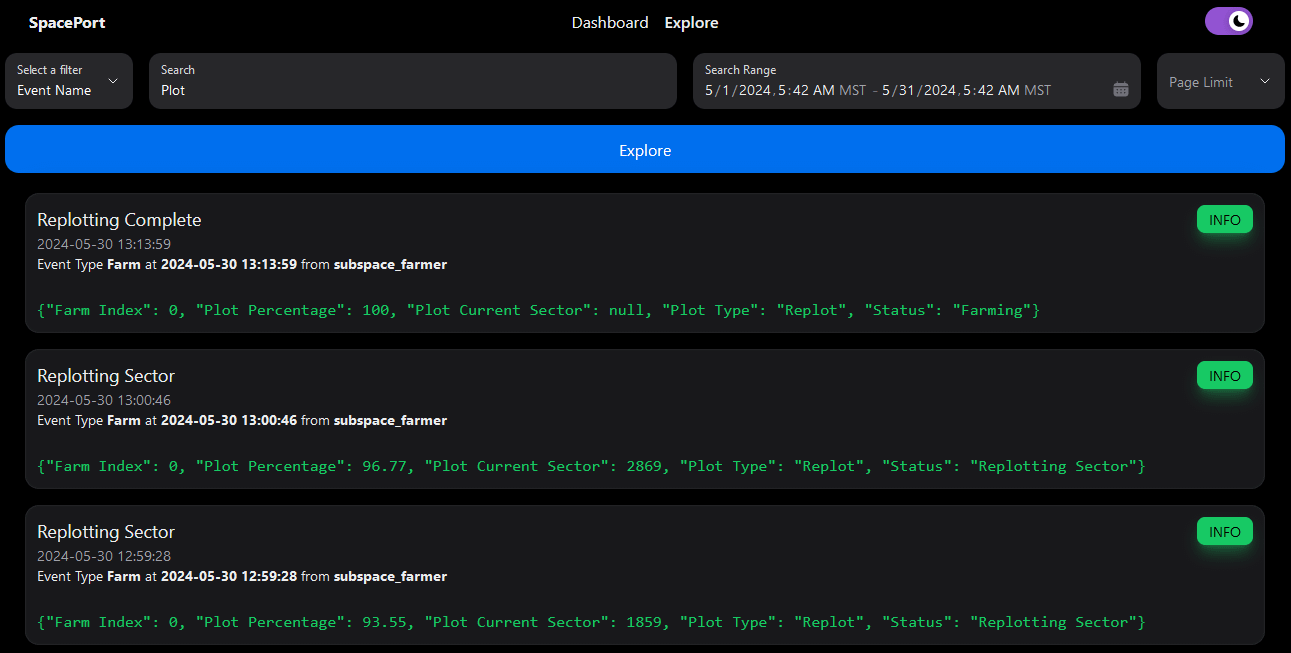
It’s pretty basic, but the idea is you choose a filter that you want to search. In this example I chose “Event Name”. I want to get all the events that have “plot” in the name. As a result I get a bunch of events from my Farm with the last one being “Replotting Complete”. The events are listed with the most recent first, so if you look at the events you see there are some “Replotting Sector” events with an increasing “Plot Percentage”. You can also select a date range, I just selected the whole month to get them all. And lastly you select a page limit if you want to get 10, 25 or 100 results. At the bottom is pagination:

Yikes, 393 pages, I should have probably filtered the data a bit better. I actually have over 200,000 events in my event table right now. And it is super responsive! Let’s see how many pages if I do a search for ALL events:

Whoa.. Alright I might need to fix that. Let’s do it again but with 100 results per page.

Okay that’s a bit better. The point here is that there are a LOT of events and they are handled just fine. You can also toggle between Light and Dark mode:
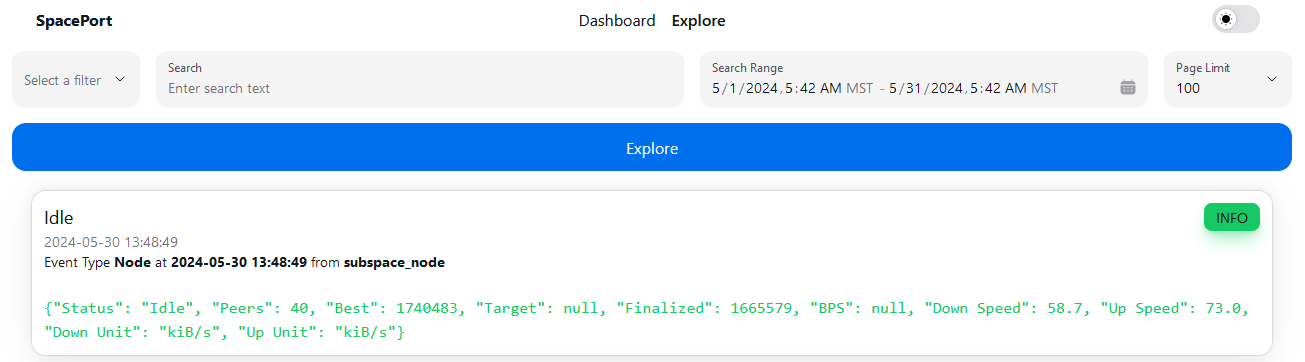
Yep it’s bright! Alright that is really it. The instructions for getting it set up will be posted soon so Subscribe to my YT and Substack to get notified!
http://www.youtube.com/@hakehardware